
Pruning
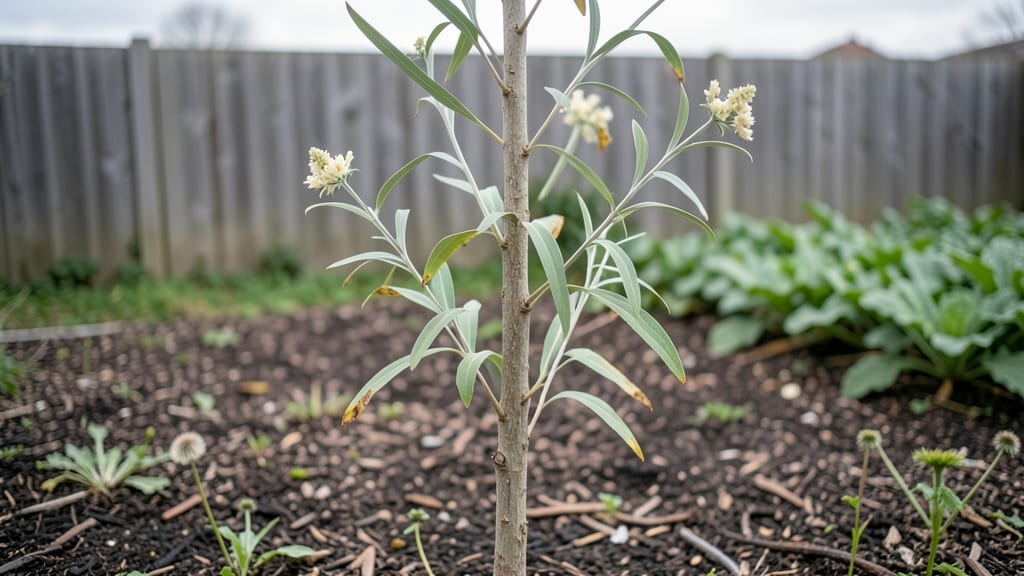
Mastering the art of Google tree identification turns every backyard mystery into a solved puzzle—no more guessing games. 🌳 just a few visual clues.
The secret isn’t memorizing botanical textbooks—it’s learning the three magic details: leaf shape (simple vs. compound), bark texture (smooth vs. furrowed), and branch patterns (horizontal vs. upright).
Once you spot these, apps like Google Lens or PlantNet cut the guesswork down to seconds. And if the first try’s wrong? That’s normal—even experts double-check.
You’ll walk away knowing not just the tree’s name, but whether it’s drought-tolerant, attracts pests, or needs pruning. Imagine finally labeling that mystery oak in your backyard—or realizing that "tree" is actually a shrub in disguise. The clarity changes everything.
Works for backyard stumpers, park trees, or even that weird sapling poking up between sidewalk cracks. Let’s turn your blind spots into a field guide—no PhD required.
📚 In This Guide
- What you need
- Instructions
- Tips and common mistakes
- Wrapping up and next steps
What you need
- ● Smartphone or tablet (with a recent model for high-quality camera resolution—at least 12MP recommended).
- ● Google Lens app (pre-installed on most Android devices; iOS users can download it from the App Store).
- ● Google Photos app (for storing and organizing tree images).
- ○ Sturdy tripod or monopod (optional but helpful for steady shots of bark, leaves, or full canopies).
- ● Gloves (lightweight, gardening-style)—to protect your hands while handling branches or rough bark.
- ● Small pruning shears or clippers (for gently snipping a few leaves or twigs—never harm the tree!).
- ● Magnifying glass (handheld, 10x magnification)—to inspect fine details like leaf veins, bark texture, or buds.
- ● Notebook and pen—to jot down observations like leaf shape, color, or growth patterns.
- ● Measuring tape (3–6 feet)—to record branch circumference, leaf length, or tree height (if safe to estimate).
- ● Portable UV flashlight—reveals hidden details in bark or leaf undersides.
- ● Waterproof bag—to keep your phone and notes dry during outdoor sessions.
- ● Tree identification field guidebook (e.g., National Audubon Society Field Guide to Trees)—for backup reference.
- ● Sun hat or cap—because squinting at leaves all day isn’t fun!
How to identify trees using Google’s tools and field clues
Here’s my step-by-step method for accurate tree ID—no botanist degree required.
🌿 Step 1: Gather Key Visual Clues in the Field
Start by examining the tree’s leaf shape, arrangement, and edges—these are your most reliable identifiers. Hold a leaf to the light and note whether it’s simple (one continuous blade) or compound (multiple leaflets). Measure the length of 3-4 leaves with your phone’s ruler app and jot down details like toothed, lobed, or smooth edges. I always check for leaf arrangement: alternate (one leaf per node), opposite (pairs at each node), or whorled (three or more leaves at a node).
Next, inspect the bark texture and color. Smooth, gray bark might indicate a young maple, while deep furrows suggest an oak. Look for branch patterns—are they horizontal or upward-sweeping? And don’t overlook buds and twigs: buds clustered in groups often point to birch or beech, while smooth, hairless twigs suggest willow. Snap a photo of all these features from multiple angles for later comparison.
📱 Step 2: Use Google Lens for Instant Leaf and Bark Matching
Open the Google Lens app and take a clear photo of a leaf, bark, or branch—avoid including background clutter. The app will often return results like “sugar maple” or “white oak” within seconds. If the match isn’t clear, try photographing both the leaf and bark together for better accuracy. I’ve found Lens works best with close-up shots (within 6 inches) of distinct features like leaf veins or bud clusters.
If Google Lens gives vague results, switch to Google’s “Tree ID” search in the main app. Type in your location and describe the tree (e.g., “large deciduous tree with lobed leaves”). The search will pull up regional species with images—compare these to your field notes. Pro tip: Use the magnifying glass icon in Lens to zoom in on fine details like leaf hairs or bark texture.
☀️ Step 3: Cross-Reference with iNaturalist or Local Databases
Upload your photos to iNaturalist (free app) and let the community verify your ID. The platform’s AI often flags obscure species that Google might miss. I always check the “Observations” tab for your area—local sightings provide real-world examples of how the tree looks in your climate. For example, a “red maple” in New England might have different leaf coloration than one in Texas.
Next, visit your state’s university extension website (e.g., “UC Master Gardeners” or “Cornell Trees”). These resources list native species with seasonal clues—like when buds swell or leaves change color. Bookmark the “Tree ID” tool for your region, as it often includes interactive keys that ask yes/no questions about your tree’s features.
📝 Step 4: Narrow Down with Seasonal and Geographic Filters
Eliminate impossible matches by filtering for your hardiness zone (find yours via the USDA zone map). A palm tree in Minnesota is a red flag! Check if the tree is deciduous (loses leaves), evergreen (keeps needles), or coniferous (cone-bearing)—this cuts your options by 60%. I also note whether the tree is native to my area (e.g., eastern white pine vs. non-native ginkgo).
Season matters: In spring, focus on bud shapes and flower clusters; in fall, compare leaf colors. Use the “Leaf Snap” app (by Smithsonian) to scan leaves and get a ranked list of possible species. For conifers, measure needle length (e.g., 1-inch needles = white pine; ½-inch = red pine) and check for cone shapes—some species have cones that resemble tiny pineapples!
✂️ Step 5: Verify with a Physical Field Guide or Expert
Grab a regional field guide (like “Trees of Eastern North America”) and flip to the section matching your tree’s general group (oaks, maples, pines). Compare your notes to the illustrations of leaf undersides, twig cross-sections, or seed pods. I keep a small notebook in my car for jotting down observations during drives—this helps spot trees I’d otherwise overlook.
For stubborn IDs, post to r/whatsthisplant on Reddit or email your local Arbor Day Foundation. Include all photos, location, and notes—vague requests get ignored, but detailed inquiries often yield answers within hours. If the tree is on public land, check your city’s urban forestry department—they maintain databases of planted species.
Tips & tricks for perfect tree identification using Google tools
A few key strategies will transform your tree identification from guesswork to confidence—especially when using Google's powerful tools.
Leaf Detail Matters: In Step 1, when examining leaf edges, pay special attention to the venation pattern. Pinnate veins (single central vein with smaller veins branching off) distinguish maples, while palmate veins (multiple veins radiating from one point) are classic for sugar maples. I've caught misidentifications by noticing these subtle differences—what looks like a simple leaf can actually be compound when viewed closely.
Bark Texture Clues: For Step 1's bark inspection, focus on color variations—young bark is often smoother and lighter, while mature bark develops deeper textures. I learned this the hard way by mistaking a young oak for a maple because I didn't account for the tree's age. Pro tip: Run your fingers along the bark—rough, scaly textures suggest birch, while peeling bark indicates sycamore.
Photo Composition for Google Lens: When using Google Lens in Step 2, position your shots to include both leaf and bark together—this gives the AI more context to work with. I've found that including a reference object (like a coin or your hand) in the frame helps with scale comparison. Avoid including background foliage that might confuse the algorithm, and always shoot in natural light for accurate color representation.
Seasonal Adaptation: For Steps 3 and 4, remember that seasonal features change dramatically. In spring, focus on flower clusters and bud shapes, while fall identification should prioritize leaf color patterns. I keep a seasonal checklist handy—what helps identify a tree in summer might be completely different in winter when leaves are absent. The Leaf Snap app's seasonal filters are particularly helpful for this adaptation.
Pro Tips for Google Tree Identification
- A few key strategies will transform your tree identification from guesswork to confidence—especially when using Google's powerful tools.
- Leaf Detail Matters: In Step 1, when examining leaf edges, pay special attention to the venation pattern.
- Bark Texture Clues: For Step 1's bark inspection, focus on color variations—young bark is often smoother and lighter, while mature bark develops deeper textures.
Frequently asked questions
Got questions about using Google’s tree identification tools? Here are some of the most common ones—and their answers—to help you get the most out of your tree-spotting adventures!
How accurate is Google’s tree identification?
Google’s tree ID tools (like Google Lens or PlantNet) are pretty accurate—especially for common species—but they’re not perfect. For best results, use clear, well-lit photos of leaves, bark, and flowers (if available). If the ID seems off, cross-check with a local field guide or arborist for confirmation.
When is the best time of year to identify trees?
The ideal time is late spring to early fall when trees are in full leaf. However, winter can work too if you focus on bark, buds, or seed pods. Avoid early spring when leaves are just budding—it’s harder to spot key details. Pro tip: Take photos in all seasons for a more complete ID!
What if Google can’t identify my tree?
If the app spits back a "no match" or a confusing result, try these fixes:
- Zoom in on key features (leaf veins, bark texture, seed clusters).
- Take multiple angles—top-down for leaves, close-up for bark.
- Describe the tree’s size and habitat (e.g., "small shade tree in a wet forest").
- Use a backup tool like iNaturalist or LeafSnap for extra insights.
Can I identify trees just from bark or branches?
Bark and branch patterns are super helpful—especially in winter. Look for:
- Bark texture (smooth, ridged, scaly).
- Branch arrangement (alternate vs. opposite leaves).
- Bud shapes (pointy, rounded, sticky).
Upload high-res close-ups of these features to Google Lens for the best matches. Pair it with a bark identification chart for extra confidence!
Will Google’s tool work for trees outside the U.S.?
Yes! While the database is strongest for North American and European species, Google’s tools can still recognize many global trees. For tropical or rare species, try iNaturalist or regional apps like TreeID (Australia). Always double-check with local experts—some species have regional variations!
Wrapping up and next steps
Identifying trees has never been easier—thanks to Google’s powerful tools and your newfound knowledge of leaf shapes, bark textures, and branch patterns!
Whether you’re a gardener, a nature enthusiast, or just curious about your backyard, you now have the skills to confidently decode the secrets of the green giants around you. 🌳
Ready to put your skills to the test? Grab your phone, head outside, and start exploring! Take a photo of that mysterious tree and let Google’s tools guide you—or better yet, share your discoveries with fellow plant lovers. Every tree has a story—now it’s your turn to uncover it!